
I set up a MatterMost server and wanted to use Jist as a Service (Jaas) and did not find a lot of info on doing this. So here is what I did, cuz I gotta write crap down.
I used a MatterMost turnkey Linux download from Proxmox.
I then signed up for JaaS at this site: https://jaas.8×8.vc
Jaas vs Jist vs Jist meet
There are 3 versions of Jist. Self hosted Jist (here in called Jist), online Jist (here in called Jist Meet), and Jist as a service (here in called JaaS).
MatterMost comes with a plugin that can be added that supports Jist. I thought I was going to be using this, but came to find out, that does not entirely work with Jist Meet or JaaS. I wanted to use Jist Meet or JaaS vs Jist as I did not want all that bandwidth running in and out of my network. With Jist, all video come back to my MatterMost/Jist server and then back out to the end user. With Jist Meet and JaaS, the connections are made in the cloud.
The Plugin
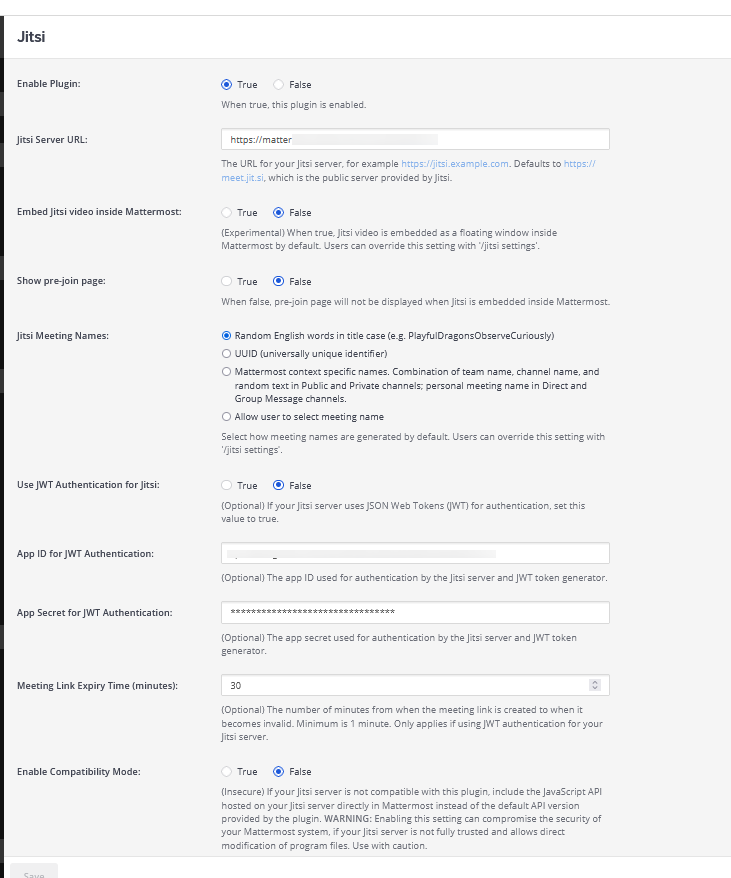
As I said, this plugin is for Jist, it does work with Jist Meet and does not work well with JaaS. You still need the plugin to set some of the parameters though. The main problem is with the “Use JWT Authentication for Jitsi”. Jist Meet would prompt for a Google Login. With JaaS it would prompt for my JaaS login which would not work as I am the only one with a login. Then by playing around with the App Secret Key and App Secret ID, the Jitsi server URL pointing it to JaaS, and turning off “Use JWT Authentication for Jitsi”, I got it to connect without prompting for login . Problem was, no one was being set as a room manager. That meant no setting lobbies, or muting people, or kicking people.
Jaas / 8×8.vc
Go to 8×8.vc and sign up for the free Jaas. The free account gets you 25 MAU per month. They define a MAU as
A Monthly Active User (MAU) is defined as a unique user who attended at least one meeting, with at least one other user, in the same month. A user is defined as a unique endpoint
I believe they count a MAU as any person + any client. So if a user were to use Ffox and Chrome PWA and the desktop client on the same PC, that would be 3 MAU for that user. The MAU resets each month.
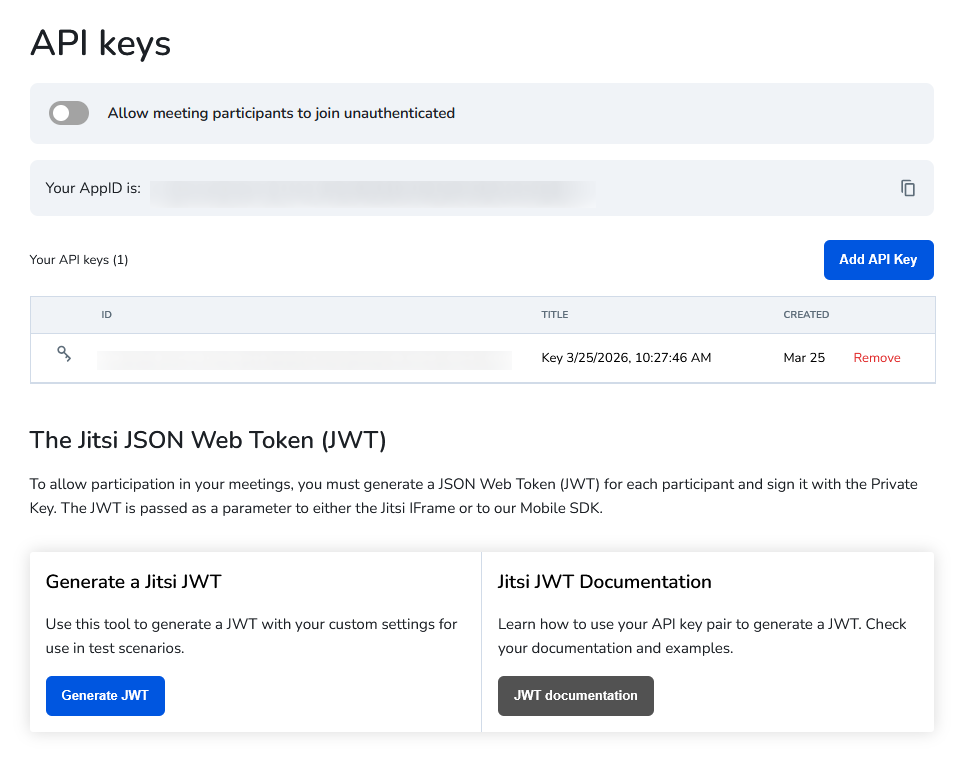
Once you make your account, you will have an AppID. You can then generate a API key. You MUST download the private key when you generate the API. It is not downloadable after the fact.
Back on MatterMost Jisti app:
You will put the APP ID in the Jitsi plugin under “App ID for JWT Authentication” .
You will past the entire, including the ==begin and the ==end, into the “AP Secret for JWT Authentication”
In the “Jitsi Server URL” you would put in your server url if self hosting Jisti or https://meet.jit.si if using Jitsi Meet, or 8×8.vc if using JaaS. But as previously stated, Jitsi meet or Jaas requires a Google login or Jaas login, respectively.
So I was at a dead end.
The app.js (version 1)
Enter the app.js. I wrote a small js to run and generate the JWT since I could not get the Jist app to work with JaaS. Here is the Code:
// ==BLOCK1=====
// === set constants===
const https = require('https');
const fs = require('fs');
const express = require('express');
const jwt = require('jsonwebtoken');
const app = express();

// ====BLOCK2===
// === 8x8 App credentials ===
const APP_ID = "vpaas-magic-cookie-123456";
const KID = "vpaas-magic-cookie-123456/aabbcc";

// === Load private key for JWT signing ===
const PRIVATE_KEY = fs.readFileSync("./private.pk");

// === Load Let's Encrypt certificates ===
const options = {
  key: fs.readFileSync("/dir/letsencrypt-key.pem"),
  cert: fs.readFileSync("/dir/combined-bundle.pem")
};
// ===BLOCK 3===
// === Jitsi redirect route ===
app.get(['/jitsi', '/jitsi/:room'], (req, res) => {
    // This grabs the room name if Mattermost sends it, otherwise generates a random one
    const room = req.params.room || Math.random().toString(36).substring(2, 10);
    const username = "Type Your Name";
    const email = "user@example.com";
// === Block 4 ===
    const payload = {
        aud: "jitsi",
        iss: "chat",
        sub: APP_ID,
        room: "*",
        exp: Math.floor(Date.now() / 1000) + 3600,
        context: {
            user: {
                name: username,
                email: email,
                moderator: true
            }
        }
    };

    const token = jwt.sign(payload, PRIVATE_KEY, {
        algorithm: 'RS256',
        header: { kid: KID }
    });

    const url = `https://8x8.vc/${APP_ID}/${room}?jwt=${token}`;
    res.redirect(url);
});
// == Block 5 ==
// === Start HTTPS server on port 3000 ===
https.createServer(options, app).listen(3000, () => {
    console.log("Jitsi proxy HTTPS running on port 3000");
});- The first “block” sets some constants to be use.
- The second “block” set the API and keys needed for JaaS and SSL
- The third “block” sets the room name to be used and name to be used in the room. MatterMost should set a room name. In case it fails, a name is generated. I could not get MatterMost to pass the MatterMost username to JaaS. So I hard coded “Type Your Name” to show in the connection box.
- The 4th block is what gets packed in the JWT.
- aud: tells 8×8 that I am using the jitsi part of my JaaS account
- iss: tells JaaS it was issued by chat integration
- sub: tells JaaS that the subject is my APP_ID
- room: tell JaaS what room this is good for
- exp: says how long the JWT is good for
- user: adds the user name, email set above. It also sets everyone as a moderator, in my case
- The 5th block starts the app.js
The last thing to do is back in the Jist MatterMost app is to point the Jistsi server ULL to the app.js. I am running mine on the MatterMost server on port :3000. Thus it would be something like
HTPS://mattermost.server:3000
Reverse Proxy
MatterMost runs on port 8065 by default. It does not run on Https. I also already have a webserver using port 443 and I only have 1 IP coming in from the outside. Thus I could not run MatterMost on 443. So I set up a reverse proxy using nginx on 4433 and pointed it to 8065. This worked well, but users had to go to Https://mattermost.server:4433 and it just looked clunky and I had port 3000 open for the app.js, though at least it was using a cert. I wanted to close off ports 8065 and 3000 from being open on my firewall/router to the internet.
I decided to set up my original web server that is running on port 443 as a revers proxy and point it to Matter most. Set up like this pic…
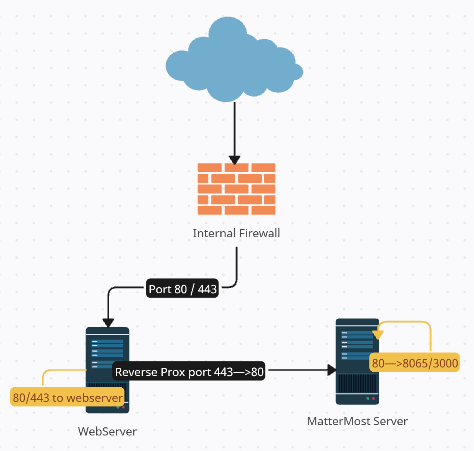
Traffic comes in from the interwebs on port 80 or port 443. All traffic goes to my web server first. If it is for my website, it stays on that web server. If its on https and is for the Mattermost server, it gets proxied over http to the MatterMost server. The MatterMost server also runs a proxy. It takes the http/port 80 traffic and routes it to either the MatterMost server on port 8065 or the app.js on port 3000.
There are 3 parts to this. The web server is running a reverse proxy using Apache. The MatterMost server is running a reverse proxy running on NGINX. The app.js on the MatterMost server got an updated config file.
Apache Reverse Proxy
I thought reverse proxy were some hard magical-like-unicorns thing. Its not, its just part of the <VirtualHost> in the Apache config file. The web server run on Ubuntu, so the Apache config file is located in /etc/apache2/sites-available/. I am using the 000-default.conf.
# ---------------------------------------------------------
# 1. LOCAL WEBSITE: www.site.com
# ---------------------------------------------------------
<VirtualHost *:443>
    ServerName www.site.com
    DocumentRoot /var/www/html

    SSLEngine on
    SSLCertificateFile /dir/combined-bundle.pem
    SSLCertificateKeyFile /dir/letsencrypt-key.pem

    <Directory /var/www/html>
        Options Indexes FollowSymLinks
        AllowOverride All
        Require all granted
    </Directory>
</VirtualHost>

# ---------------------------------------------------------
# 2. PROXY FOR MATTERMOST: mattermost.site.com
# ---------------------------------------------------------
<VirtualHost *:443>
    ServerName mattermost.site.com

    SSLEngine on
    SSLCertificateFile /dir/combined-bundle.pem
    SSLCertificateKeyFile /dir/letsencrypt-key.pem

    # 1. SSL Proxy Logic (No longer strictly needed for Server B, but fine to leave)
    SSLProxyEngine On
    SSLProxyVerify none
    SSLProxyCheckPeerCN off
    SSLProxyCheckPeerName off
    SSLProxyCheckPeerExpire off

    # 2. Modern Proxy Logic
    ProxyPreserveHost On
    ProxyRequests Off

    # Updated Jitsi Bridge (Point to HTTP)
    ProxyPass /jitsi http://192.168.1.156/jitsi
    ProxyPassReverse /jitsi http://192.168.50.156/jitsi

    # Updated General Mattermost Proxy (Point to HTTP)
    ProxyPass / http://192.168.1.123/
    ProxyPassReverse / http://192.168.1.123/

    # 3. Secure Headers (CRITICAL: This tells Mattermost it is SECURE even though internal link is HTTP)
    RequestHeader set X-Forwarded-Proto "https"
    RequestHeader set X-Forwarded-Port "443"

    # Updated WebSockets for the Mattermost client (Use ws:// instead of wss://)
    RewriteEngine On
    RewriteCond %{HTTP:Upgrade} =websocket [NC]
    RewriteRule /(.*)           ws://192.168.1.123/$1 [P,L]

    ErrorLog ${APACHE_LOG_DIR}/matter_error.log
</VirtualHost>

# ---------------------------------------------------------
# 3. HTTP TO HTTPS REDIRECT
# ---------------------------------------------------------
<VirtualHost *:80>
    ServerAdmin webmaster@localhost
    DocumentRoot /var/www/html

    # This catch-all redirector sends ANY site on this server to its HTTPS version
    RewriteEngine On
    RewriteCond %{HTTPS} off
    RewriteRule ^(.*)$ https://%{HTTP_HOST}$1 [R=301,L]

    ErrorLog ${APACHE_LOG_DIR}/error.log
    CustomLog ${APACHE_LOG_DIR}/access.log combined
</VirtualHost>
This is in 3 parts.
- Part 1 keeps the https traffic meant for my web server on the server.
- Part 2 This sets up and proxys over https traffic to the MatterMost server.
- top of that section loads up the SSL certs needed. I will talk later about the combined cert.
- 1- is the old part where I was talking SSL between servers. Not really needed by left.
- 2- sets up some proxy perimeters:
ProxyPreserveHost On-tells the proxy to leave original full domain name in the proxy. Without this it might send the IP or truncated name. NGINX would get confused
ProxyRequests Off-this stops other people form using the proxy and locks it to this specific site, mattermost.site.com
ProxyPass and ProxyPassReverse – tell the web server where to send the data - 3- sets up some SSL trickery to pass to MatterMost
RequestHeader set X-Forwarded-Proto “https”-tells MatterMost that its ok to generate all its links with https even though the incoming request are http
RequestHeader set X-Forwarded-Port “443”-tells MatterMost to keep working on 443 and not 80
Rewrite-This is where the proxy tells MatterMost to stop using HTTP and switch to websocket
- Part 3 This tells the web server to move all port 80 request over to 443. This may become a problem when I go to do a SSL cert renewal.
NGINX Reverse Proxy
The MatterMost server runs NGINX on Debian. Here is its reverse proxy located in /etc/nginx/sites-enabled/
server {
    listen 80;
    server_name mattermost.site.com;

    # Logic for Jitsi Proxy
    location /jitsi/ {
        proxy_pass http://127.0.0.1:3000/;
        proxy_set_header Host $host;
        proxy_set_header X-Real-IP $remote_addr;
        proxy_set_header X-Forwarded-For $proxy_add_x_forwarded_for;
        proxy_set_header X-Forwarded-Proto https;

        proxy_http_version 1.1;
        proxy_set_header Upgrade $http_upgrade;
        proxy_set_header Connection "upgrade";
        proxy_buffering off;
    }

    # Logic for Mattermost
    location / {
        client_max_body_size 50M;
        proxy_read_timeout 600s;
        proxy_send_timeout 600s;
        send_timeout       600s;

        proxy_set_header Upgrade $http_upgrade;
        proxy_set_header Connection "upgrade";
        proxy_set_header Host $http_host;
        proxy_set_header X-Real-IP $remote_addr;
        proxy_set_header X-Forwarded-For $proxy_add_x_forwarded_for;
        proxy_set_header X-Forwarded-Proto "https";

        proxy_pass http://127.0.0.1:8065;
    }
}
It has two parts. Jitsi and MatterMost settings for the reverse proxy. It should be noted that they MUST be in this order.
Logic for Jitsi Proxy–
location /jitsi/-says apply these setting to request in the format of matter.server.com/jitsi
proxy_pass http://127.0.0.1:3000/; – forward to port 3000, the node.js app
proxy_set_header Host $host;-keeps the domain name
proxy_set_header X-Real-IP $remote_addr;-passes the IP address of the user
proxy_set_header X-Forwarded-For $proxy_add_x_forwarded_for;-like a log to tell how the user got here
proxy_set_header X-Forwarded-Proto https;-same as Apache. Use https not http
proxy_http_version 1.1;-use this version because it supports websockets
proxy_set_header Upgrade $http_upgrade;-move from http to websockets
proxy_set_header Connection “upgrade”;-move from http to websockets
proxy_buffering off-do it, do it now
Logic for Mattermost
client_max_body_size 50M;-sets max attachment size, like a pdf
Timeout-all of these lines keep the websocket open for 10min. I was seeing some resend errors in chat
proxy_set_header– all of these do the same we explained above and in Apache
proxy_pass http://127.0.0.1:8065;-send the stuff to MatterMost software running on port 8065
The app.js (version 2)
Now that users were not going directly to the MatterMost server to run JaaS directly, I needed to update the app.js from above.
const http = require('http'); // 1. Changed from https to http
const fs = require('fs');
const express = require('express');
const jwt = require('jsonwebtoken');

const app = express();

/**
 * CRITICAL: This tells Express to trust the headers sent by Nginx.
 */
app.set('trust proxy', true);

// === 8x8 App credentials ===
const APP_ID = "vpaas-magic-cookie-123456";
const KID = "vpaas-magic-cookie-123456/aabbcc";

// === Load private key for JWT signing ===
const PRIVATE_KEY = fs.readFileSync("./private.pk");

// --- NOTE: Certificate loading removed from here ---

// === Jitsi redirect route ===
app.get(['/', '/:room'], (req, res) => {
    const room = req.params.room;

    if (!room || room === 'jitsi') {
        return res.send('Jitsi Bridge is active. Waiting for a room name from Mattermost...');
    }

    const username = "Type Your Name";
    const email = "user@example.com";

    const payload = {
        aud: "jitsi",
        iss: "chat",
        sub: APP_ID,
        room: "*",
        exp: Math.floor(Date.now() / 1000) + 3600,
        context: {
            user: {
                name: username,
                email: email,
                moderator: true
            }
        }
    };

    const token = jwt.sign(payload, PRIVATE_KEY, {
        algorithm: 'RS256',
        header: { kid: KID }
    });

    const url = `https://8x8.vc/${APP_ID}/${room}?jwt=${token}`;

   res.send(`
<!DOCTYPE html>
<html>
<head>
    <title>Meeting Launcher</title>
    <style>
        body { background-color: #141517; color: white; font-family: -apple-system, BlinkMacSystemFont, "Segoe UI", Roboto, Helvetica, Arial, sans-serif; display: flex; justify-content: center; align-items: center; height: 100vh; margin: 0; }
        .container { text-align: center; padding: 20px; }
        .loader { border: 4px solid #3d3d3d; border-top: 4px solid #3895ff; border-radius: 50%; width: 30px; height: 30px; animation: spin 1s linear infinite; margin: 20px auto; }
        @keyframes spin { 0% { transform: rotate(0deg); } 100% { transform: rotate(360deg); } }
        .btn { display: inline-block; margin-top: 20px; padding: 12px 24px; background-color: #166de0; color: white; text-decoration: none; border-radius: 4px; font-weight: bold; transition: background 0.2s; }
        .btn:hover { background-color: #1a7fa0; }
        .status-text { opacity: 0.8; font-size: 0.95em; line-height: 1.5; }
    </style>
    <script type="text/javascript">
        window.open("${url}", "_blank");
        setTimeout(function() {
            const loader = document.querySelector('.loader');
            const title = document.querySelector('h2');
            const status = document.querySelector('.status-text');
            const button = document.querySelector('.btn');
            if (loader) loader.style.display = 'none';
            if (title) title.innerText = 'Meeting Launched';
            if (status) status.innerHTML = 'We attempted to open the meeting in a new window.<br>If you are already in the meeting, you can close this tab.';
            if (button) button.innerText = 'RE-OPEN MEETING MANUALLY';
        }, 2000);
    </script>
</head>
<body>
    <div class="container">
        <div class="loader"></div>
        <h2>Launching Meeting...</h2>
        <p class="status-text">Opening your default browser for camera and microphone support.</p>
        <a href="${url}" target="_blank" rel="noopener noreferrer" class="btn">
            OPEN MEETING MANUALLY
        </a>
    </div>
</body>
</html>
`);
});

// === Start HTTP server on port 3000 (options removed) ===
http.createServer(app).listen(3000, () => {
    console.log("Jitsi proxy HTTP running on port 3000");
});- The first part is basically the same as above. Also notice the change from httpS to http
- The second part loads the API and Key for JaaS. You will note that the SSL certs were removed.
- The third part still sets up the room and user names. I did still have to use “Type Your Name”
- The 4th part does the same as the 4th part in version1. It sets what gets packed into the JWT.
- The 5th part, <!DOCTYPE html>, is entirely new. One the windows desktop client it refused to give control to the client for the camera and the mic. I believe because the desktop client was still seeing it as being a port 80 request. Chrome (the “browser” inside the client) will not give control unless on an https port. What this whole section does is pops-out JaaS to the default browser when the meeting button is pressed inside MatterMost. It also sets a message and a reconnect button to display on the page that does pop-up in the MatterMost desktop client.
- The 6th part starts the app.js running http on port 3000
Plugin Change
The last thing to note, and this is important. Back on the Jist plugin( figure 1 above) you must go back an add /jist/ to the end of your url. So it should look like https://matter.server.com/jist/ . If you do not do this it will not know that all that reverse proxy forwarding is for it.
Adroid MatterMost App and Certs
At the very begining of this journey I had a hard time getting the MatterMost app on android to connect. It would alway say it could not find the server. A web browser on the Andriod phone would work fine. It seems that Android and iOS do not like just the key.pem and the cert.pem like everything else I was using MatterMost on. You must have a combined chain pem. That is why you see me using the combined-bundle.pem in my config files for the web servers. I combined them by hand, but I believe I can get all of this via certbot. I will eventually do another how to on automating certbot and getting the combined pem automated.
Client and Voice Calls
I had an issue where using the built in voice call of the MatterMost client would not work. I tried various things and had results from not connecting, outside hearing inside but inside not hearing outside,to it connecting but then the outside user would get a popup error saying they were timed out. In the last case I could seem them on the call even after their timeout error.
The issue was because of the reverse proxy. Since the MatterMost server had to resolve itself as the actual reverse proxy server, it was not pointing to itself to host the call. When all was said and done, this is what I did to get it working.
Linux Kernel Routing Overrides (rp_filter)
Because MatterMost server internal DNS pointed directly to Server B, the Linux kernel interpreted incoming external UDP audio packets from outside the network IP addresses as a spoofing attempt and discarded them.
I disabled strict reverse path filtering on the MatterMost server by editing /etc/sysctl.conf and adding the following two lines to the bottom of the config
net.ipv4.conf.all.rp_filter = 2
net.ipv4.conf.default.rp_filter = 2
This shifted Linux networking to a “loose” routing verification model, permitting asymmetric outside audio packets to land on the server
UDP Port On Firewall
The calls are UDP not IP. I had to open a UDP port on the server. I chose a non standard port and opened it. I forwarded this port directly to the Mattermost server.
ICE Host Settings
Mattermost has in their documantion about an over ride if you do have to split your DNS like I did. You can use delimiter syntax inside the ICE Host Override field. By using Public IP/Internal IP, the plugin was forced to advertise the true WAN gateway address to public clients while bridging internal clients natively. You would enter something like 123.231.55.55/192.168.1.100 all on one line.
RTC Server Settings
In the Real-Time Communications Sever section we changed the server IPs to 0.0.0.0 this makes the server listen on any address and not just the internal. We also set the UDP port to our uncommon port we opened on the fire wall
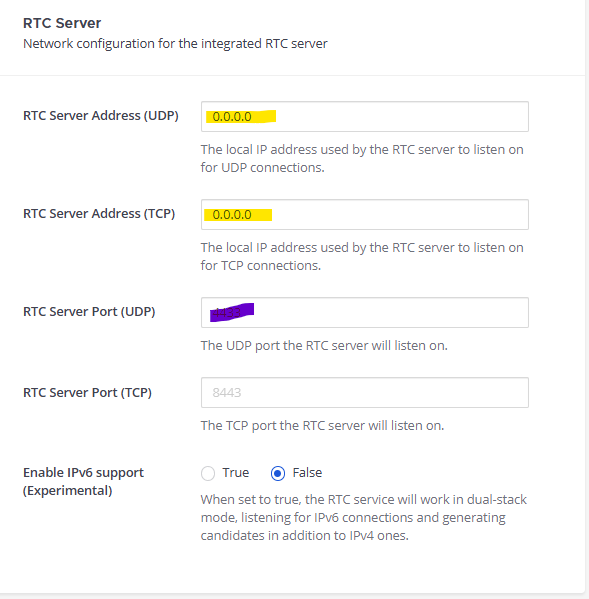
So thats it. After that the voice calls started working as desired.
New Problem:
Since the ICE Host Override field requires and IP and will not accept FQDN, it will break if my dynamic outside IP address changes. I hope to write a script to edit the config.json file when that IP changes.
Stand by for more……